The Situation
The county’s team needed one place for a young person’s whole history, and it had to work in the field.
Their records started on paper and in SharePoint. A form tool came next, adopted to structure the data and capture it in the field, and it did that job. What it wasn’t built for was a history. It kept one row per person, so each new referral replaced the last one, and forms couldn’t point to each other, so the chain from a report to a case to a person couldn’t be recorded. Some of the dates that matter for the county’s yearly reporting were still counted by hand.
The data is some of the most sensitive a county holds: young people, their families, where they live, and their contact with the justice system. Encryption, the audit trail and isolation had to be there from the first release, not added after a review.
The Individual at the Center
Everything in the platform starts from the individual: one record per person, with everything else attached to it.
The record holds the profile and photo, contact details, and several addresses with one marked primary. It holds fields the organization adds itself, without a code change, from a preferred language to an insurance ID. It holds referrals, each one its own case with its own status, so a young person referred three times has three cases instead of one row written over twice, and the system counts how long each referral waits before someone picks it up. Then come the sessions held with them, the tasks about them, the documents generated for them and the notes written about them.
The same record opens in the browser, one tab per area, and on the phone, where a worker can call, text or get directions from it.
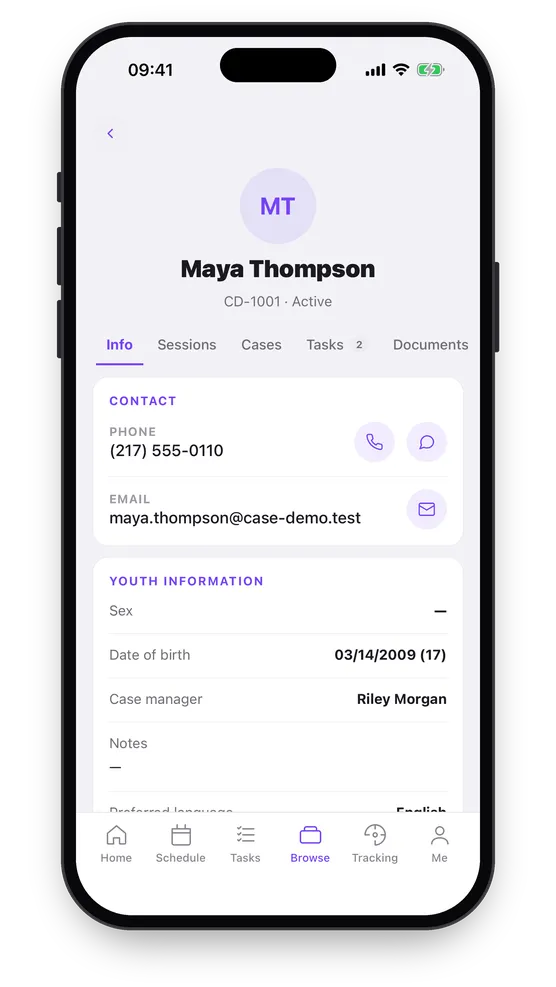
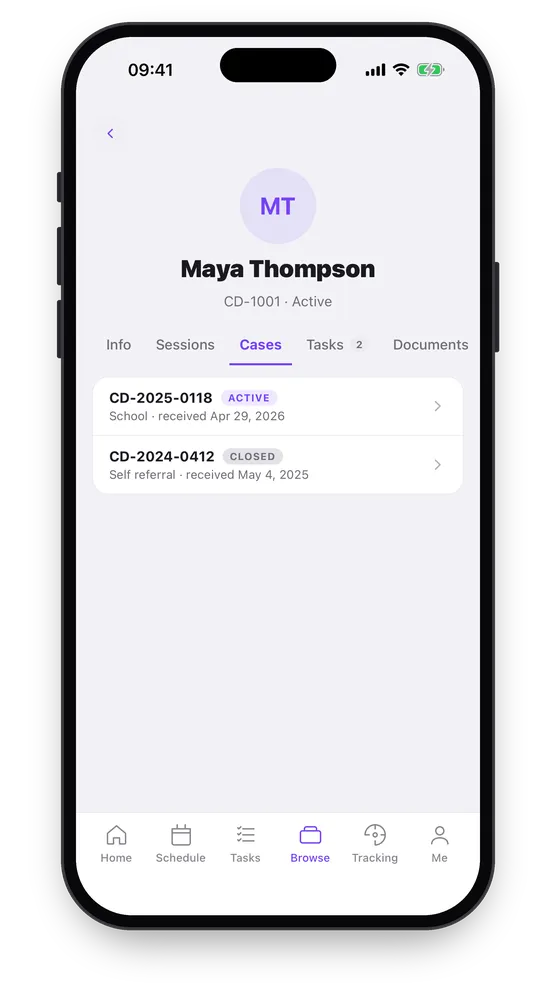
The same record on the phone: contact details one tap from a call, and each referral kept as its own case, the closed one beside the active one.
Sessions, Notes and Tasks
Sessions are the scheduled work: a meeting with an individual, assigned to a care provider, with a note written afterwards.
Each kind of session has its own note, a COR note, a DAP note or any other, and each note is a form the organization builds itself. A session moves from planned to submitted when its note is saved, then to in review and completed. The note keeps the version of the form it was written on, so changing a form later never changes what an old note says, and every save of a note is kept, so a correction doesn’t erase what it corrects. When a note is saved, the app offers to book the next session.
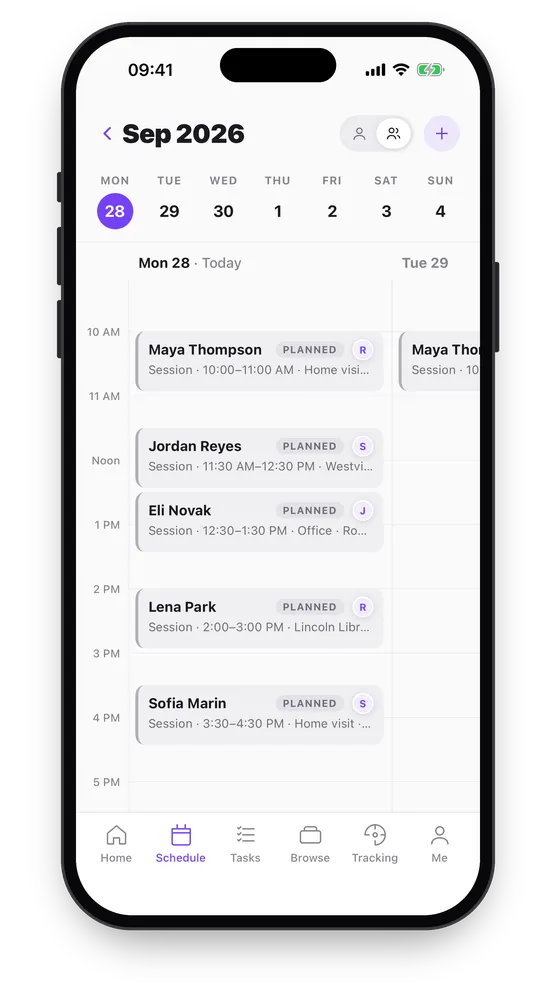
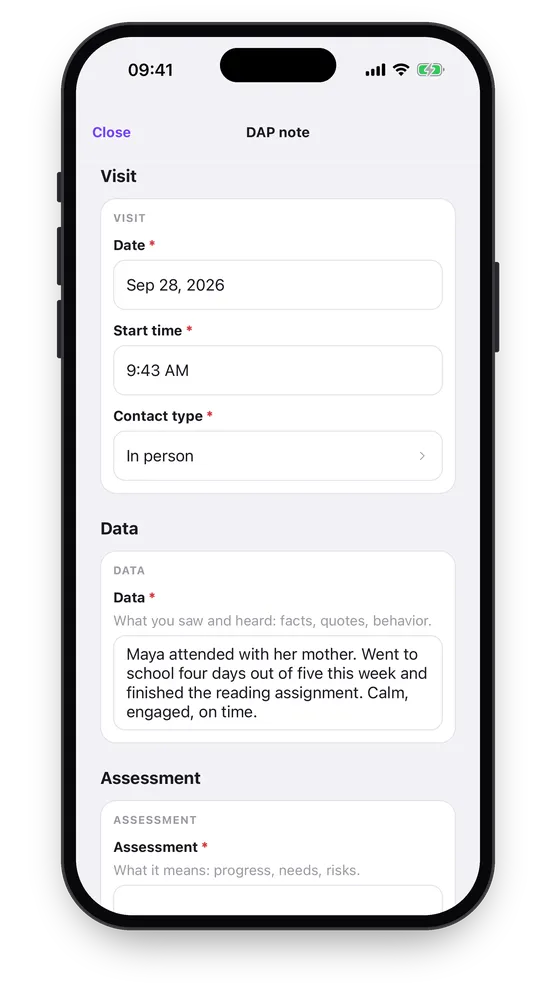
The team’s day, each visit assigned to a care provider, and a DAP note that opens with its date and time already filled in.
Tasks are work with a due date. A task can be about an individual, a case, both, or nothing at all, a chore for the team. It carries comments and files, and on the phone the list filters to what’s past due, due this week or due next week.
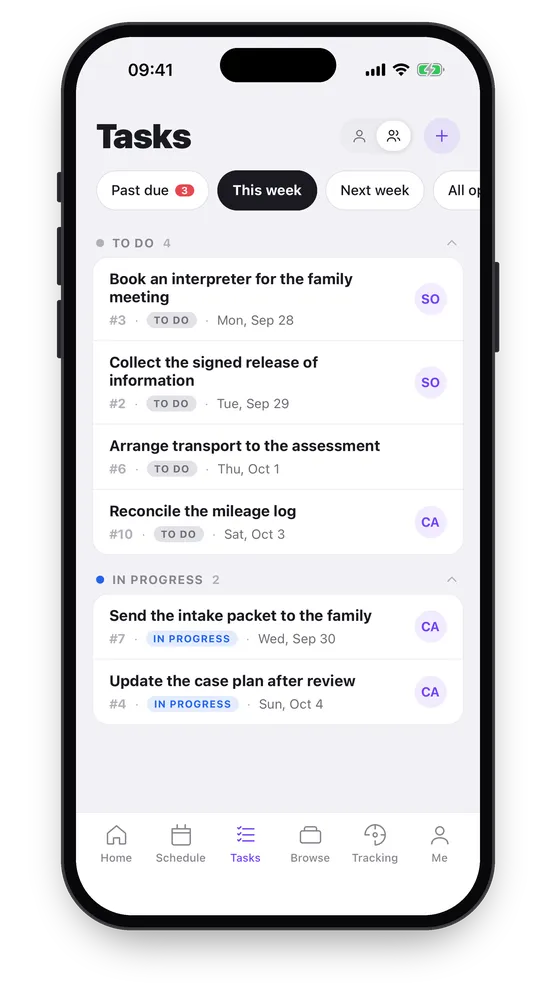
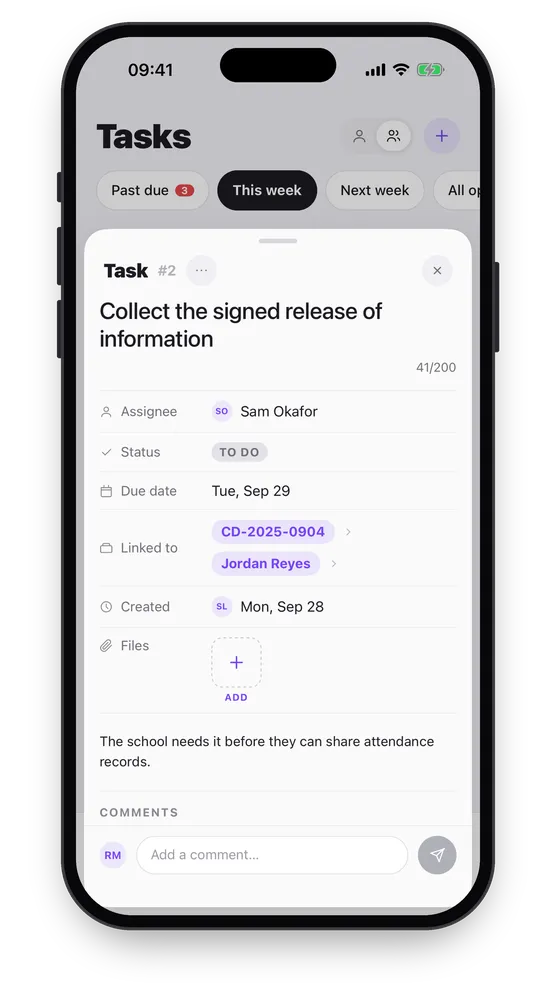
The team’s tasks for the week, including a chore tied to no record, and one task linked to both a case and an individual.
Forms and Documents, Set Up Without a Developer
The organization builds its own forms and document templates, and neither needs a developer.
The form builder offers 18 field types, from text and dates to photos, GPS positions and signatures, with rules that show or hide a question based on an earlier answer. Forms are versioned, and two versions can be compared side by side.
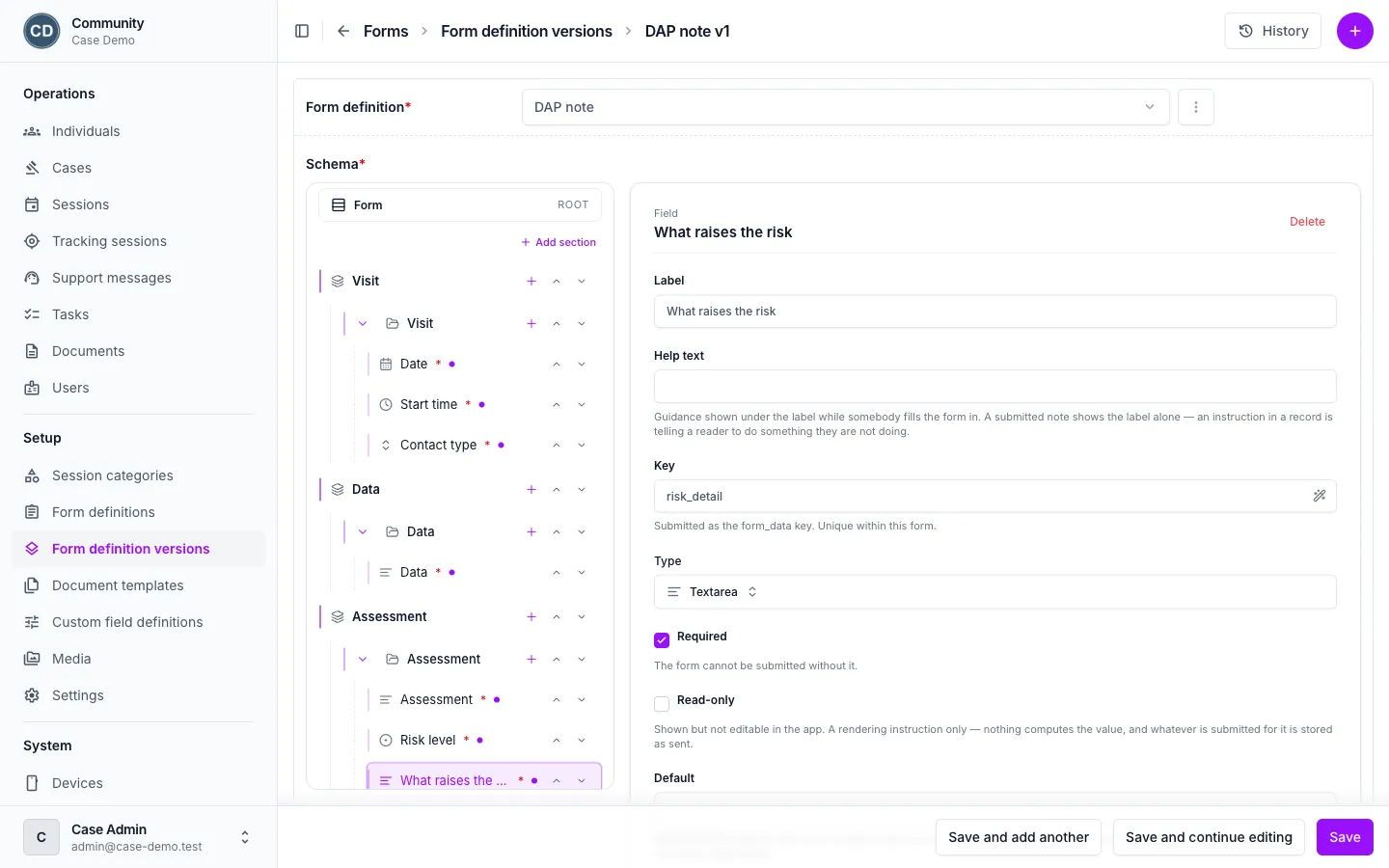
Building the DAP note: sections, fields and each field’s rules, set up in the manager with no code.
Documents start from the Word file the team already uses. Upload the DOCX, place fields in it, and the platform fills them from the record: the individual’s name, date of birth, address and case manager. Each template can ask its own questions when a document is generated, and collect signatures.
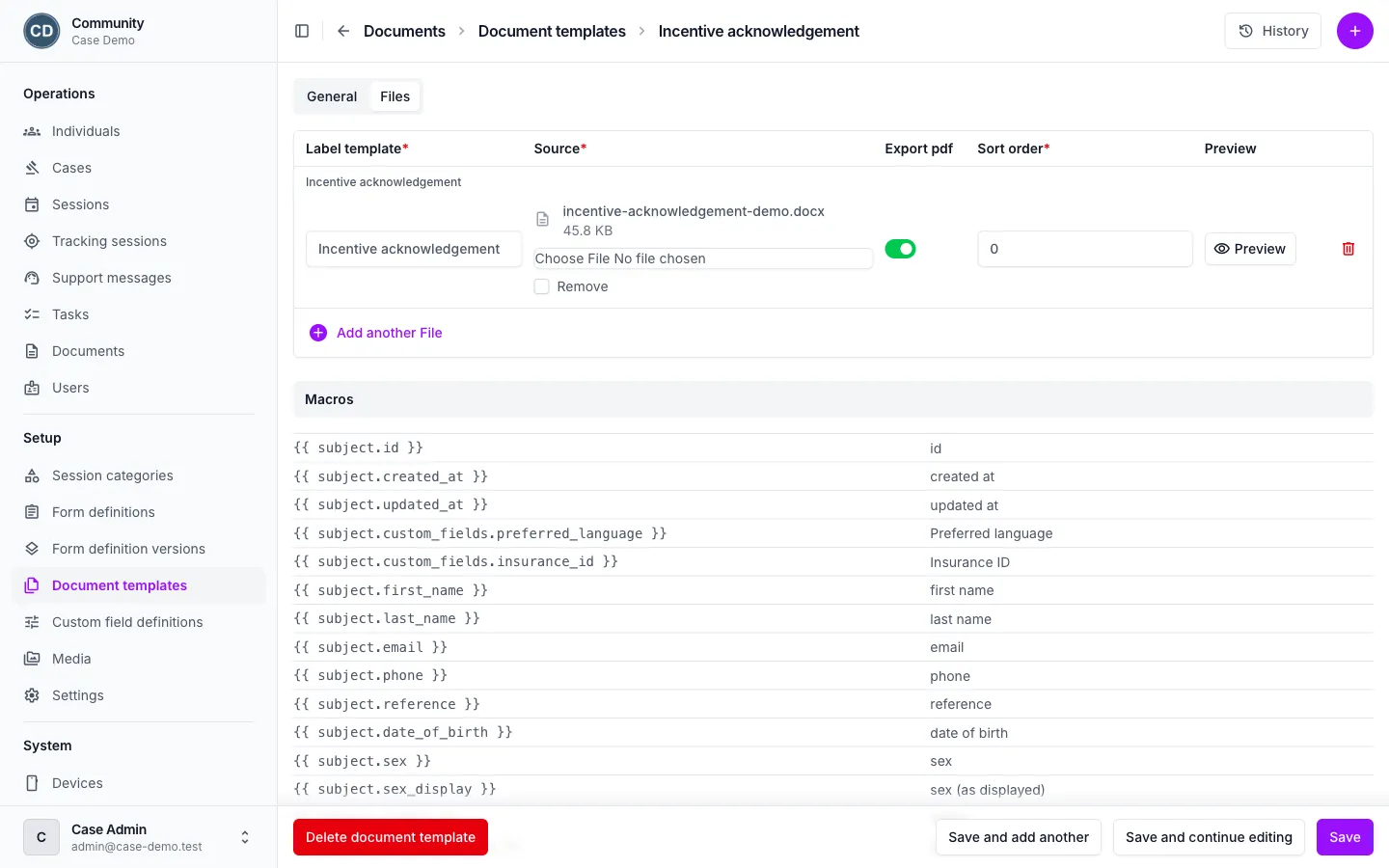
The template is a Word file. The panel lists every field it can pull from the record and from the template’s own questions.
On the phone, a worker picks the template, answers its questions and hands the phone over for a signature. The result is a PDF with the signature printed in it. With no signal, the request waits on the phone and the document is made when it reaches the server. Documents are rendered in a separate service with no database access and no internet, because the templates are written by the organization, not by us.
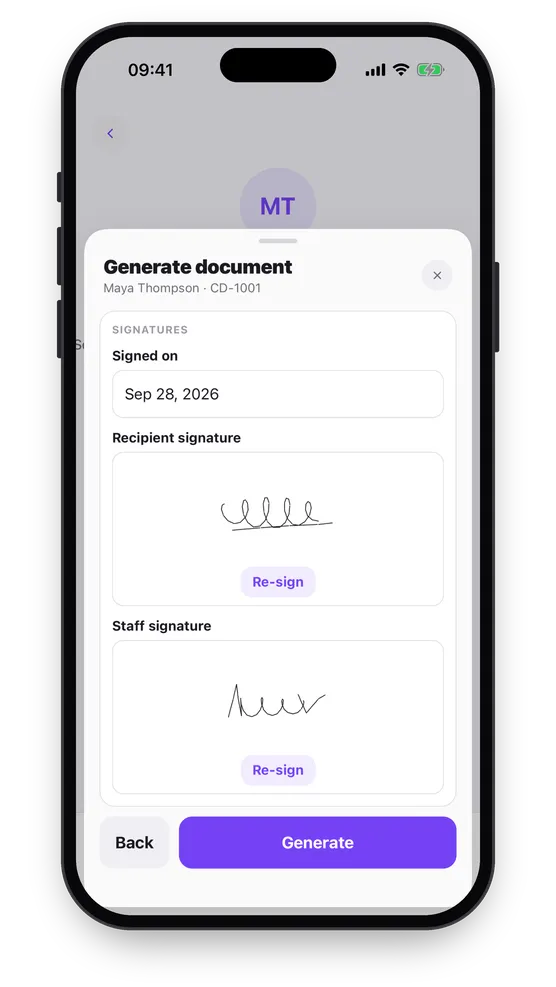
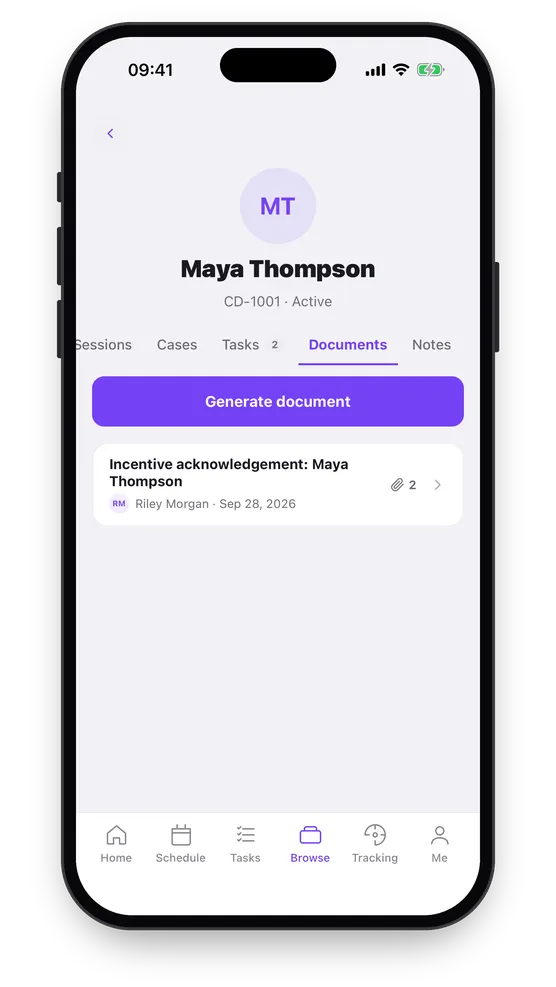
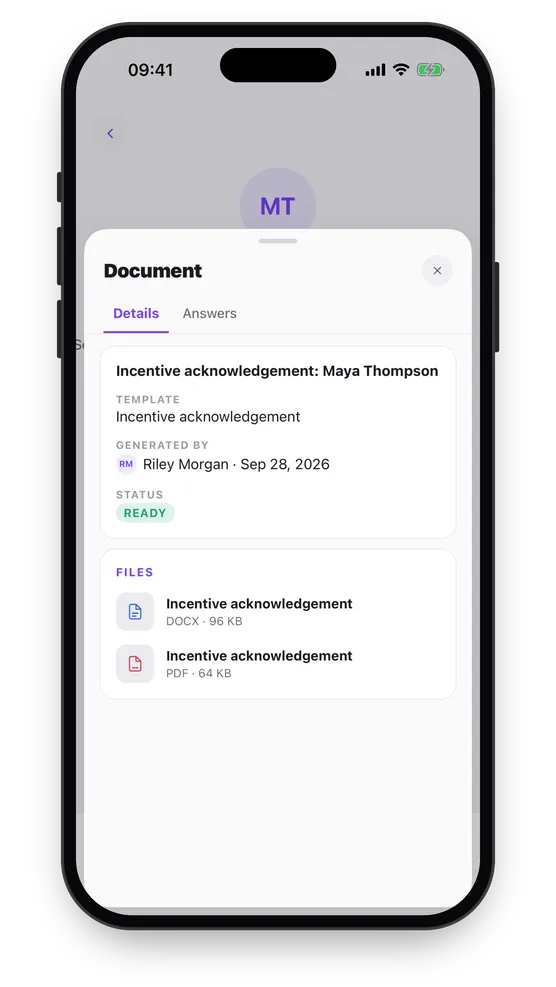
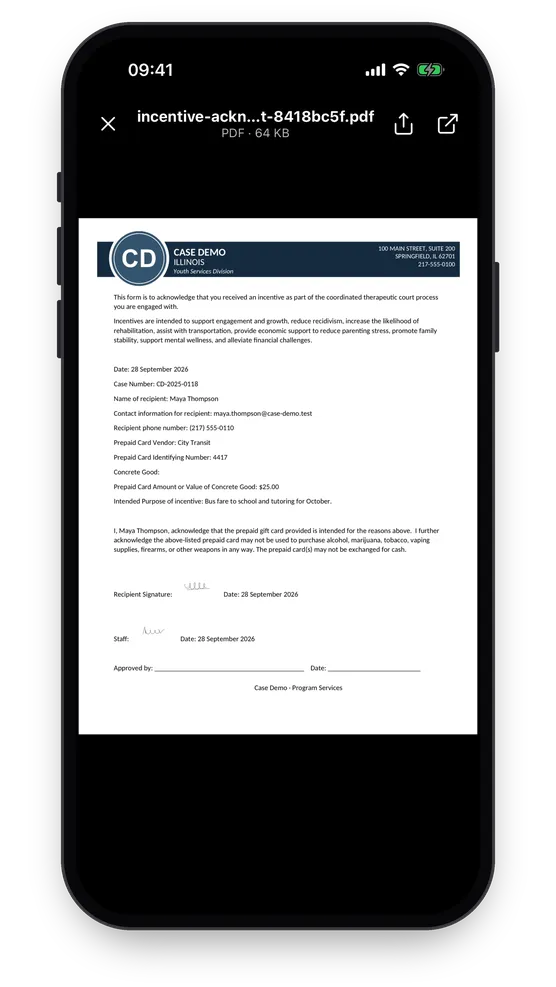
From the template’s questions and two signatures to a finished PDF on the individual’s record, filled from the record, signatures printed in it.
Offline and Location Tracking in the Field
The app is built for places with poor or no signal: everything a worker needs is on the phone, and everything they do waits there until it can be sent.
Individuals, sessions, notes, tasks, cases and documents are kept on the device. Booking a session, writing a note, completing a task, generating a document and checking in all work offline, and anything not yet sent says so, “Waiting to send”, until it is.
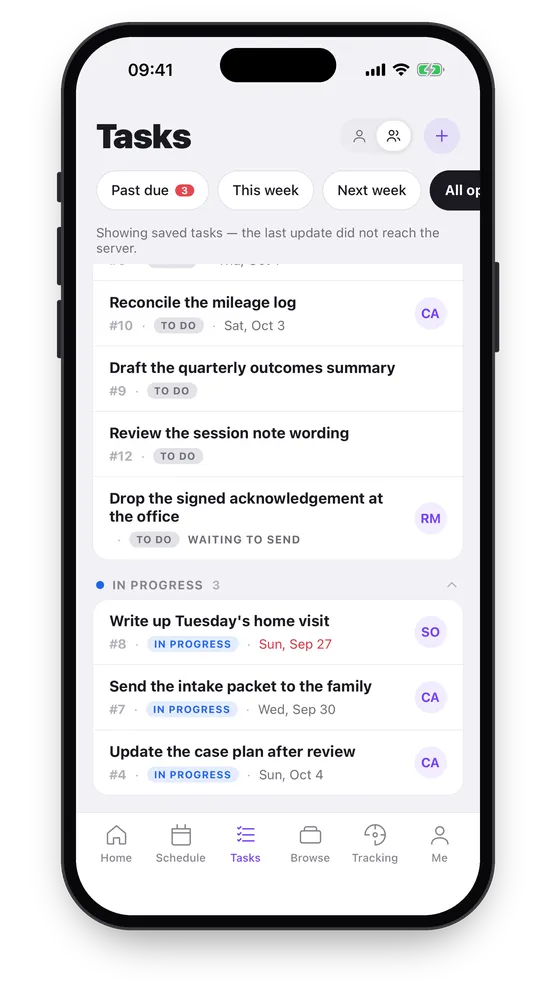
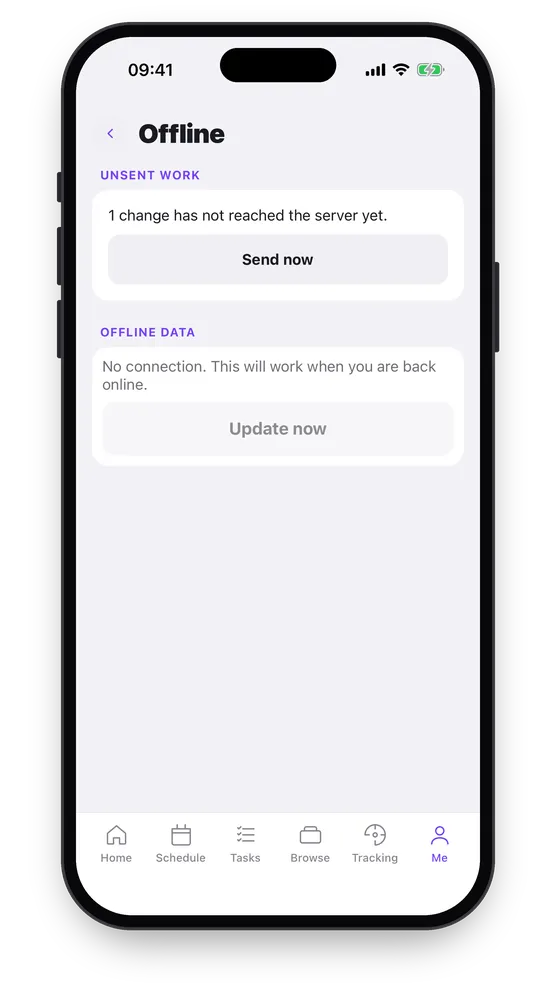
With no connection, a new task is saved on the phone and marked “Waiting to send” until the server can be reached.
Location tracking is a staff-safety feature, and it’s optional. A worker turns it on when they head out, so colleagues can see that they’re out and where. They choose how often to check in, and if a check-in doesn’t come within that interval, the team can be notified to check on them. The location is shared only while tracking is on, and the trail stays on the record for review afterwards.
Each organization decides how often phones record a position. In the browser, trails are drawn by the platform itself: Google Maps is off by default, and turning it on is left to the organization as a compliance decision.
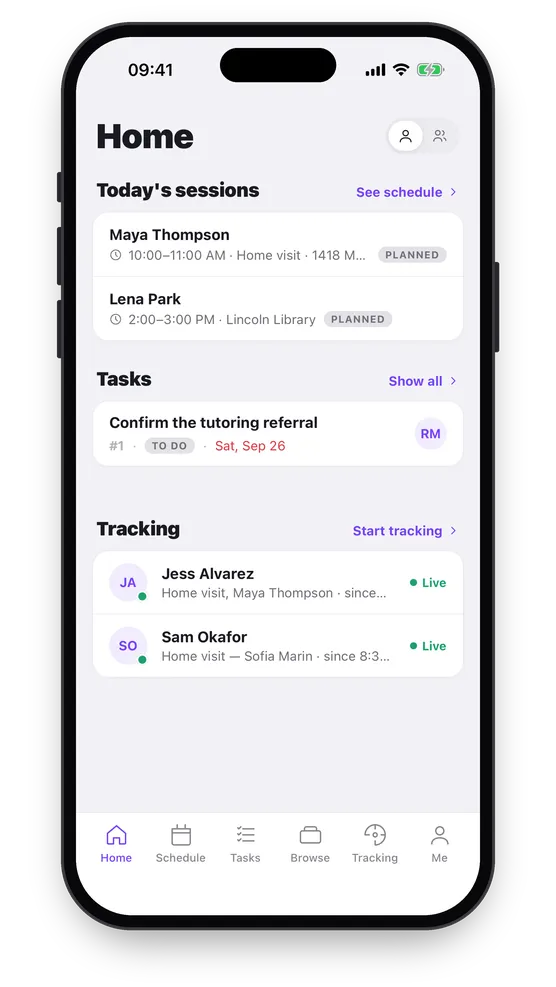
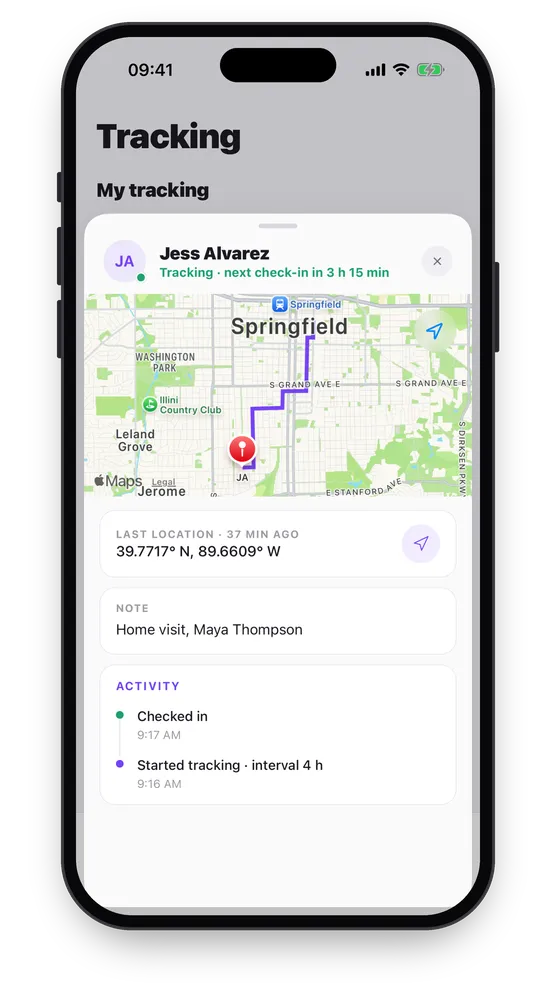
Who is out right now, on the home screen, and the trail of a visit on the map, with every check-in on the record.
Security and Compliance, Built In
Security wasn’t a phase at the end: encryption, the audit trail, isolation and access control are part of the platform every screen is built on.
- Encrypted at rest, in three layers. The platform runs in the client’s own government cloud, on Azure or AWS, where the database is encrypted at rest. On top of that, sensitive information is encrypted column by column before it is stored, notes, dates of birth, addresses, locations and case details among it, with keys that can be rotated. On the phone, the offline database and any files waiting to upload are encrypted too, and the app is kept out of device backups.
- Nothing is lost. Every change is recorded by the database itself, field by field, with who made it, so the record doesn’t depend on a line of code someone might forget. History is never written over: every attempt at a note is kept, every referral is its own case, and a note stays on the form version it was written on. Nothing is hard-deleted: a delete marks the record, and the database refuses the alternative.
- Isolated by organization. Each client runs its own deployment in its own cloud account. Inside it, every organization is a separate workspace: the platform limits every query to one organization, not each screen, and tests check that one organization can’t see another’s records.
- Access tied to people and devices. Two-step sign-in, which an organization can make mandatory. Every sign-in is tied to a device, so a lost phone can be cut off on its own without touching anyone else’s access. New staff get a login sheet with a QR code that sets the app up for the right server and organization, the app stays bound to that server, and signing out clears the downloaded records from the phone.
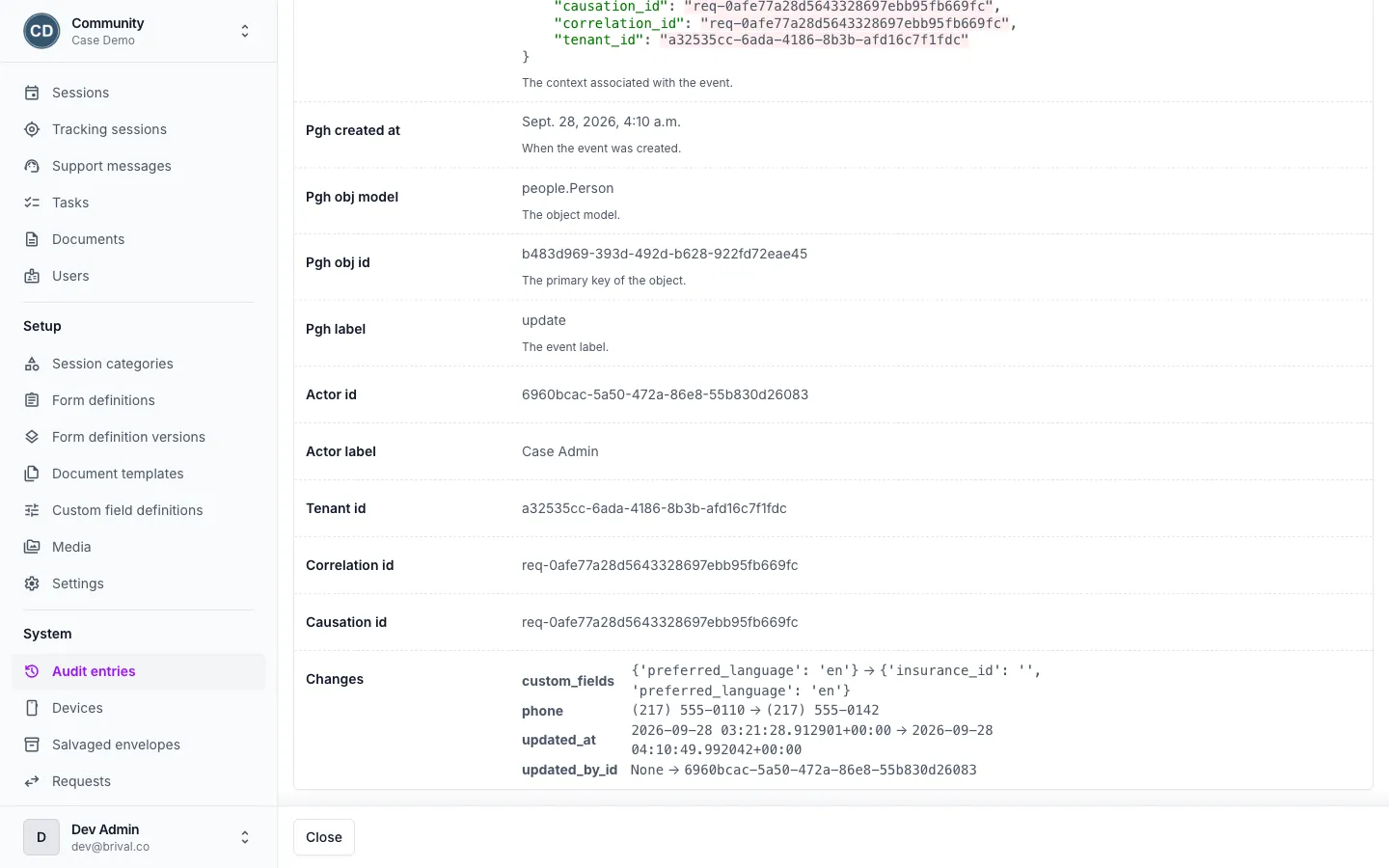
One change in the audit trail: who made it, the request it came from, and each field before and after.